I-nigma is Lightning Fast and the MùltìSac is Featherlight

It’s not bulky. Even with my iPad in its ClamCase shell, the iPad slips inside easily and doesn’t feel too heavy to carry about all day.

Last weekend I bought a MùltìSac Handbag (misty nylon-style) for two reasons. It is very lightweight–I hate heavy bags–and it has a special compartment for my iPad. It was $18 at an outlet store, a good price. After using it for a few days I can say I’m pleased with it.

faster than a speeding bullet

While removing the labels attached to the bag the QR code caught my attention. I grabbed my iPad, and opened up i-nigma and Wham! once again I witnessed the lightning fast response of i-nigma which snaps a photo of a code before it is even within the indicated boxed area. I realized I should jot a post about this great QR reader sometime. At a technology meeting during the week, I scanned the code on the auditorium screen with no fiddling about and once again I had the thought of spreading the word about i-nigma.

Try it out!

Posted in iPad Apps, QR Codes, Web 2.0 | Tagged , , | Leave a comment

Editing Documents Using the Google Drive iPad App

If you have a Google account and you are using iPads, there is a great app from the iTune store, Google Drive, that allows you to edit Google Documents on your iPad.

First you need to be sure that you change your Google account to Google Drive. You can do that by going to http://drive.google.com.  Use  Sign Up to sign up for Google Drive using the Google UserName and Password that you already have. When you close Google and sign-in again you will see Drive in the menu.
Your documents are now being saved in the cloud and this is where you can find them when signed-on to Google.

The app allows you to make basic changes to a Google documents but not to spreadsheets or presentations as of now. Google is working on that feature. I tried the Google Drive iPad app out and I’m very happy.

Some of the features that are included are in the following list:

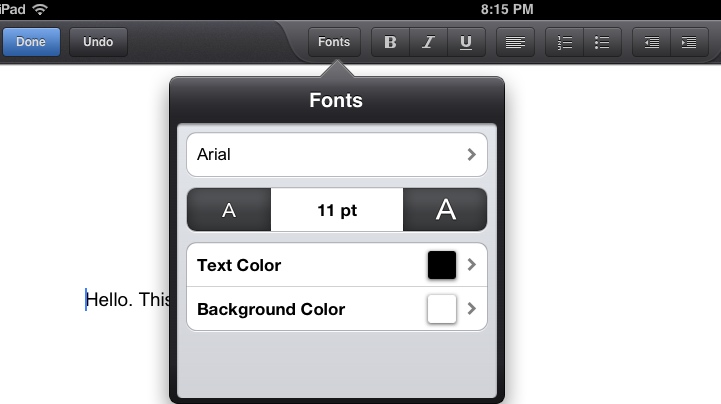
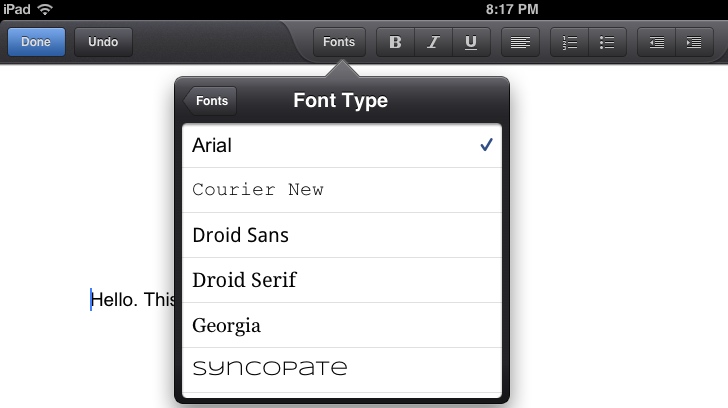
  • Change to a very basic fonts
  • Change the size of the font
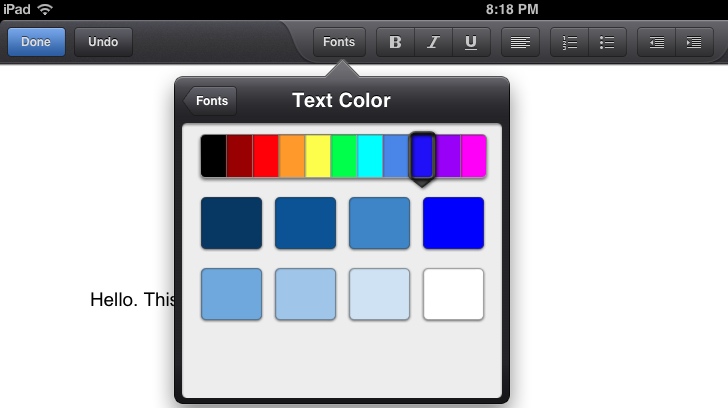
  • Change the text color
  • Change the background behind the text
  • Bold, Italics, and Underline
  • Use numbered lists or bulleted lists
  • Indents

Here are a few screenshots to help you see how basic and simple this app is.

For further information about this app visit the About the Google Drive app for iPhone and iPad page.

Posted in Google, iPad Apps, Web 2.0 | Tagged , | Leave a comment

Explain Everything iPad App: How Great You Are!

Standing in the hallway, looking down the passageway at the doors that open into small cells, you will be forgiven if you think you’ve found yourself in a penitentiary. But no, you would be wrong, because these are rooms of joy. They are used by our music department. Students have private lessons and practice their music here. I escaped to one of these rooms yesterday with one of our World Language teachers in order to avoid the hustle and bustle of the office and the ringing of telephones. Our mission was to use the iPad app Explain Everything to record a movie tutorial for a Chinese class.

It had been a particularly draining day with back-to-back appointments and the sort of activity which is normal during the first couple of weeks when school reopens for the year. It was pleasant to find myself quietly listening to the melodic Chinese voice sitting beside me on the piano bench recording a movie for her students. Halfway through our recording session a student slipped into the room across the hall and shortly we were treated to the sound of a tuba seeming to come from a distant shore. Soon my colleague seemed to be following the rhythm of the tuba as she continued forward in her quest. Suddenly she turned toward me with great joy on her face and said, “How great you are.” I replied, “you know that sounds like a song to me.” She smiled and burst forth in a full-blown “How Great Thou Art, How Great Thou Art!” ending in an explosion of laughter.

This was a clear example of transference that was working to my advantage. That nifty iPad app Explain Everything is so easy to use. Starting with a blank project:

  • select the pen icon
  • choose a color and thickness
  • hit the record button and start talking while you write
  • pause the tape while you select a new slide and repeat the procedure.

When you finish your masterpiece it’s easy to export it to Dropbox. Our movie was a mite long at 15 minutes. We had it up on the student SharePoint portal in no time at all. We have big plans going forward to make shorter and more compressed movies and we expect each one will be a little better than the last.

Here is a shout out to Explain Everything: how great you are!

Posted in Explain Everything, iPad Apps | Tagged | Leave a comment

How to Read Don Quixote in Spanish and English Side by Side on your iPad

Would you like to read Don Quixote in Spanish and English at the same time on your iPad? I wanted to try it, and here are the steps that worked for me:

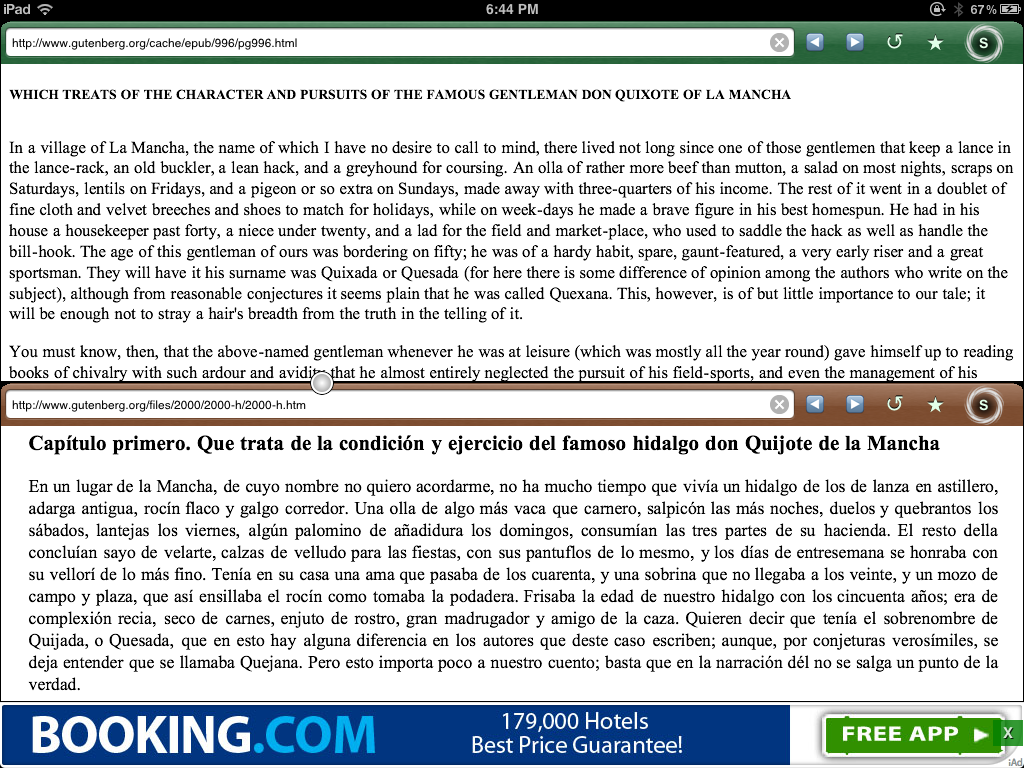
  • I opened the Side by Side app, using the choice of one screen on top of the other.
  • I went to Project Gutenberg on each browser, and typed Cervantes in the Search area in both browsers.
  • In one browser I chose the Spanish edition and I chose English for the other.

Below is a picture of the results. I have the free Side by Side iPad so an advertisement appears at the bottom. You can buy the app to eliminate the ad.

The Side by Side app could be used in various ways in world language classes. One idea that comes readily to mind is having a translation of a poem alongside the original shown through a projector while discussion takes place in the classroom. You can also take notes in one of the screens and save them to Dropbox. Read the comments on the Side by Side App iTunes page to see some favorable comments that students have made.

I found the Side by Side iPad app about a year ago and have been happy with it. There are some other choices out there though, that you might like to try. Here is a good list from Greg Swanson.

Posted in iPad Apps, Web 2.0 | Tagged , | Leave a comment

Pearltrees

I have found that as I introduce Twitter to staff members, they are usually amazed at the amount of K12 information available to educators and support staff. They can quickly become overwhelmed with so much relevant information coming in. It’s like attending a top-notch conference every day, with no time to digest and reflect unless a system is figured out. They become immersed for a month or so, but the time comes when they start wondering how to keep track of all the links to the collection of data they want to store and share with others.

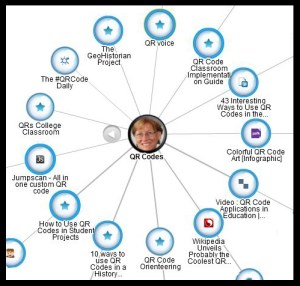
There are many good sites for organizing your links. I am using Pearltrees.  Basically I create a “Pearltree” and then I put “Pearls” into it, for example, I have a Pearltree labeled QR Codes and within it I have put lots of links to QR information.

I enjoy the Pearltree site. I have connected my Pearltrees account to my Twitter account. Each time I tweet a URL a pearl is automatically created in my drop zone, located at the bottom of my Pearltree screen, and I can then put the pearl—the link I tweeted out—in the appropriate Pearltree.  That’s pretty nifty.  I enjoy reading the comments that users leave about my Pearls and I like the fact that I can follow trending factors by what Pearls people are “picking” from my site. And finally, it’s great to be able team up with other people on particular Pearltrees within my site.

Posted in Curation | Tagged , , | Leave a comment

Recent Copyright Issues

This week I read two blog postings about people who used material protected by copyright. In the first case a lovely, delightful and certainly kind cease-and-desist letter was written to Patrick Weinsink’s publisher who infringed upon the rights of Jack Daniels. In the second, author Roni Loren was sued and taken to court, even though she took down the offending photograph she had put on her blog within minutes of receiving the notice to do so, and she found it to be an expensive and time consuming lesson, all for a photo she really didn’t need.

With this in mind use your telephone or camera to snap an appropriate picture if you need one or use a creative commons resource. If you blog, or plan to have your students blog, be sure to familiarize yourself with copyright issues before using a photo found on the Internet.  When in doubt, leave it out.

Here is a link to a PearlTrees I created some time ago with some copyright articles which might be of interest to those of you in K12. (Click on the X to close the iPhone app notification or wait about 10 seconds.)

Posted in Web 2.0 | Tagged , | 2 Comments

LiveBinders

LiveBinders can be used by anyone who wants to organize a site around a certain subject. For timid users who want to begin to use a bit more technology in their classroom, without the fear of being overwhelmed, LiveBinders might be a good place to start. For tech coaches it makes a nice lunch and learn topic because you can cover the features in a lunch period.

LiveBinders is easy to use without a high learning curve.  Tabs and subtabs are used, just like a filing cabinet, to organize your stuff. To sign up you need to create a user name and a password, and be over thirteen years old.  That’s it! There is nothing to download. You can access it anywhere you have a connection to the Internet and your LiveBinders will look and act the same on an Apple or Windows based computer. You can invite people to collaborate on your LiveBinders.  Your students can also create and then gather research and even use their LiveBinders as part of a presentation.  You can create several. Oh, and it’s free.

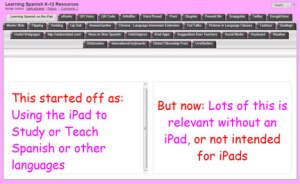
Image of LiveBinder exampleDuring an iPad unconference I happened to be sitting with a group of Spanish language teachers all wishing for a one-stop-shop resource of tools for teaching Spanish on the iPad. I offered to do the research and report back via the Google spreadsheet that was posted for the unconference. I created a LiveBinders, posted the address for the others, and began to find and include many interesting sites. It grew, and as time went by, I broadened the focus including information that could be used without iPads. It continues to be a work in progress.

Listed below are some examples of LiveBinders being used in Education, and to see my Spanish LiveBinders you can click on the photo above.


Posted in Web 2.0 | Tagged | Leave a comment