Pencil Camera – Have Fun With This iPad App for Your Camera

Pencil Camera HD has some fun filters for your iPad camera (works on iPhone too) and the app is free today with AppGratis, but is usually $1.99.

It’s super simple to use. Get photos from:

  • your camera roll
  • take a picture using your front or back camera
  • your iTunes library
  • you can also make a little movie

There are fifteen filters and you can adjust the brightness, contrast or contour.

There is a question mark up in the lefthand corner in case you need help.

An app like this can help you or your students stay away from sticky copyright issues. It’s so easy to take your own photos and filtering them can change them into something interesting to add to digital stories, blogs, and other places that might be viewed publicly. This seems a better choice than searching for free images in many cases.

Here are three photos taken with the iPad from within Pencil Camera HD and then filtered. Click a photo for a larger view.

Posted in AppGratis, Copyright Issues, iPad Apps, Pencil Camera | Tagged , , | Leave a comment

Boosting the Recording Level of your Microphone

Is your voice too soft to hear after recording something through your microphone when using VoiceThread or other programs?

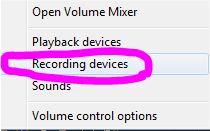
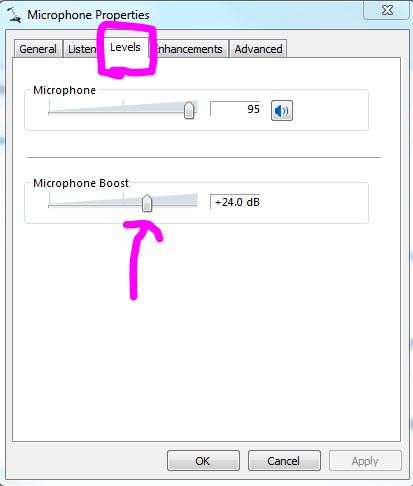
Try boosting the level of your microphone and see if this helps. Many people find it quickest and easiest to use the small sound icon in the menu at the bottom of the screen when using Windows 7, although others prefer to go straight to the Control Panel to the Sounds area. The microphone boost feature is still in the Control Panel in Windows 8 too.

Here are the steps to follow when using the sound icon in Windows 7:

I recorded two sounds to test the difference with everything exactly the same, except for the microphone boost. You can listen to the difference below.

This is at +12.0 dB

This is at +24.0 dB

Posted in Web 2.0 | Tagged , | Leave a comment

WordPress Blogs—Pninbacks and Pingbacks

I remember reading some years ago a lovely book by Valdamir Nabokov called Pnin. Professor Pnin, an absentminded professor from Russia, teaches in the USA. Pnin receives an urgent message from the university library that he needs to immediately return a book that is very much overdue because someone needs it for their research. He finds the book in question among his many books and reluctantly takes it back to the library. When he asks the librarian who is requesting this book so urgently (he really wants to keep it since his research is ongoing) he finds that he himself requested it! I have not told the story so enchantingly as Nabokov, but it serves as a segue into what I am now calling Pninbacks and what WordPress calls self-pings.

This week I wrote a blog post and I linked within it to another post I had written a few months ago. The next day I noticed in the comments area of my WordPress dashboard that I had received a comment. I looked at it carefully, and it seemed to be a quote from my own blog, but I could not figure out who sent it or why. I seem to remember it started and ended with brackets and elipsis, sort of like this: [[… blah blah blah …]]]. It seemed to be from me.

Hmmmmm, what to do? Should I approve it, delete it, send it to spam? I finally decided to delete it, and search later when I had a moment to figure it out. I have now sorted this out and wanted to share this information with any other perplexed WordPress.com person.

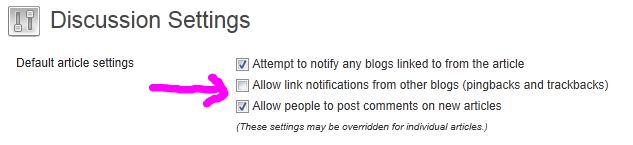
The default WordPress.com blogs come with a little box checked that allows you to receive what are called Trackbacks, Pingbacks, and Self Pings. This setting allows you to receive messages in your comments section that alerts you that someone is linking to your blog.  This article explains why you might consider unchecking the box in the discussion settings area of your site. Don’t forget to scroll down to save your changes, as the discussion page is very long and the checkbox is at the top.

No more Pninbacks!

Posted in Web 2.0 | Tagged , | Leave a comment

Windows 8 – Adding a New Language Pack to Windows 8

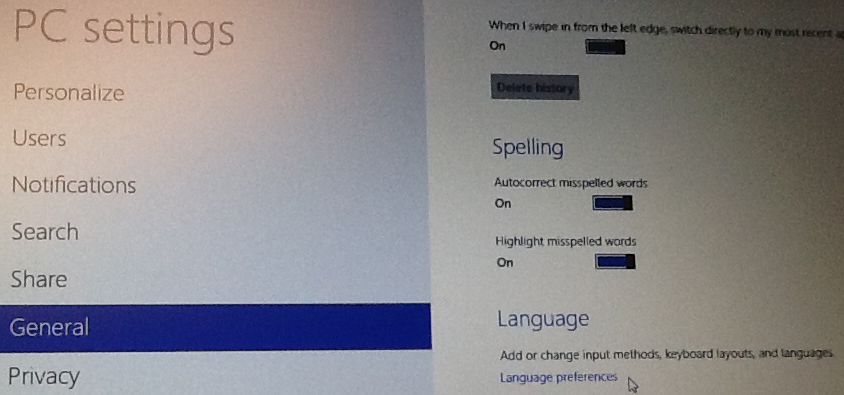
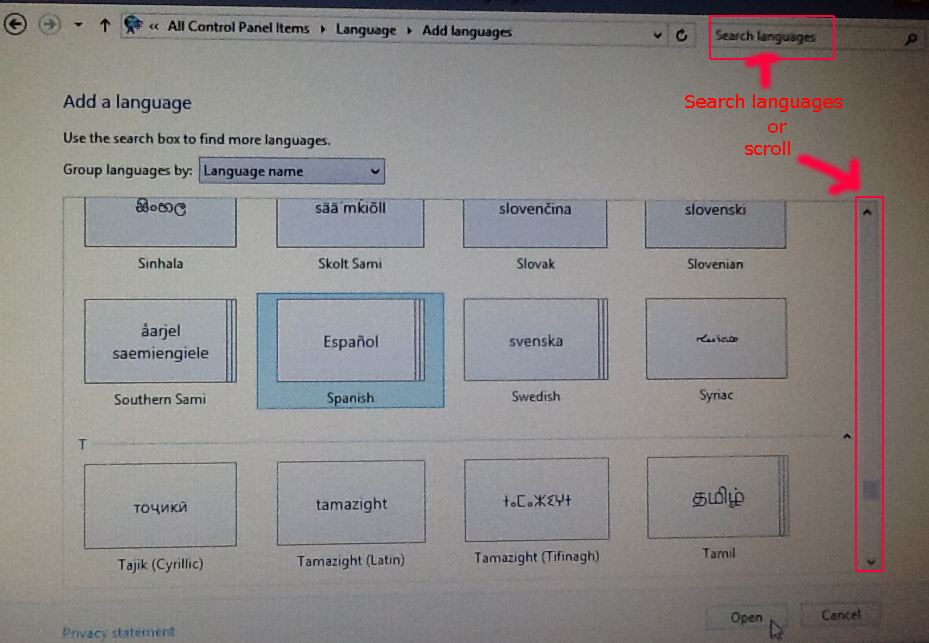
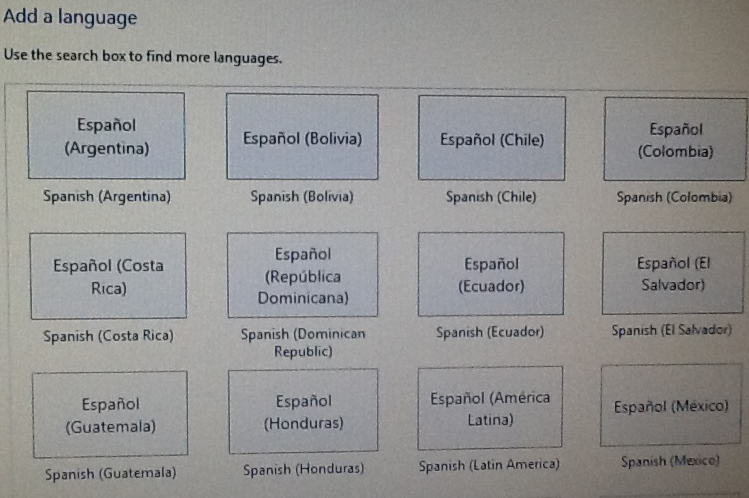
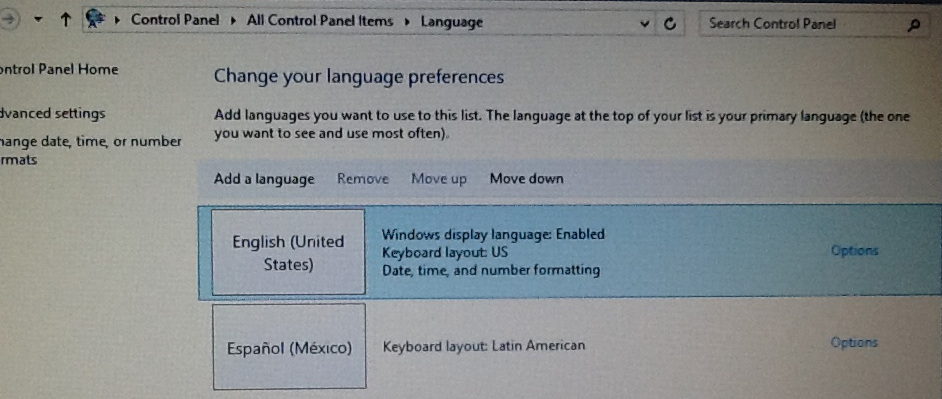
In Windows 8, it is easy to add a language pack to the control panel so that you can quickly switch between English and another language. You can change keyboard settings in the same area. I tried this out on a Lenovo laptop with Windows 8 that I just installed yesterday. I used my iPad to snap some shots of the Lenovo screen which is why the photos are not so great, but I thought I would include them anyway.

This was fast and easy once I learned my way around the Metro look. Here is how it is done:

  • click on Settings icon,
  • click Change PC Settings
  • click on general settings,
  • scroll down to Language and click on Language preferences
  • click Add a language
  • scroll down to the language you want to add, or type the name of the language in the Search box
  • choose from the various choices that are available
  • click add
  • if you want to make it the default language, move it up to the top

Test to see if it works by opening up your Internet Explorer.

It’s much easier to change between one language and another then it used to be with Windows 7 or earlier operating systems. Simply go into the control panel and move the language you want as dafault to the top of the list. It’s fast to change it back again if you share the computer with someone who prefers a different language setting.

Posted in Language Pack-Change, Windows 8 | Tagged , | Leave a comment

LiveBinders Side View and Blogger Photo Error Message: Upload Failed

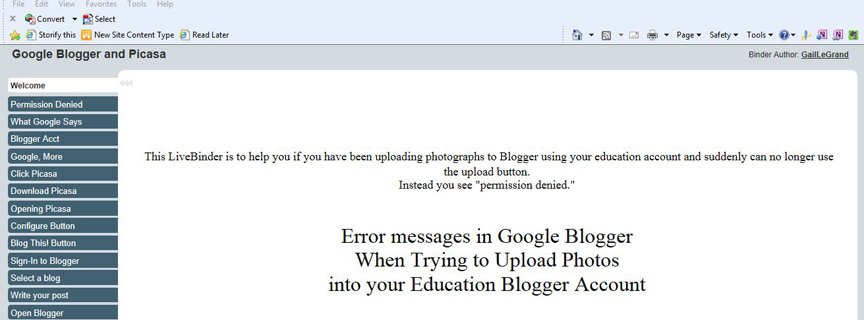
Today I created a LiveBinder about what to do if you suddenly find you can no longer upload photos into your Google Education Blogger account because you receive the message: Upload failed: Permission denied.  Follow this link to the LiveBinder if you would like to see how I solved that problem by using Picasa.

While I was in LiveBinders I noticed a cool new feature that I really likethe Side View! I particularly like it for the binder I did this morning because the side view works well for the step-by-step procedure I presented there as a solution to a problem. It seems as though you have to be signed-in to use this view so I could not send you the link with the side view as a choice. I’m including some photos below though. You can use the side view by signing into LiveBinders and then Choosing Play – Tabs Side. If you are not already using LiveBinders, you can read about about it in a post I did back in July.

Live Binders is continuing to make life easier for people working in K12. Thanks so much!

Posted in Blogger, Google, LiveBinders, Picasa, Web 2.0 | Tagged , , , | Leave a comment

OpenDyslexic Font With Instapaper

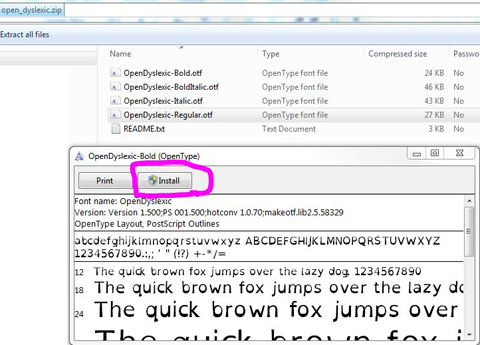
You can download for free the OpenDyslexic font on your computer to use within Word and other programs. When you download the font you get a zip folder which includes:

Regular
Bold
Italic
Bold-Italic

Clicking on each font will give you the “Install” choice and clicking on “Install” will put the font into your font folder. The font is now ready to use on your computer. Open up Microsoft Word and choose one of the four OpenDyslexic fonts to try one out.

You can also download the iPad app Instapaper for $3.99 in order to read web pages later, even offline, and you can choose from several fonts including OpenDyslexic.

The links below have some interesting information regarding the OpenDyslexic font and the app Instapaper.

Posted in Font, Instapaper, Papers-Magazines, Web 2.0 | Tagged , , | Leave a comment

Storify, Twitter and SmackDowns

Just found out something new regarding Storify and Twitter.

After adding the Storify bookmarklet by

  • dragging the “Storify this” button to your bookmark bar,
  • and then clicking on the “Storify this” button while you are in your twitter account,
  • a new choice will appear within tweets at the bottom. You will see:

Expand     Reply     Retweet     Favorite     Storify

When you click on Storify you will see a copy of the tweet and the choice to Tweet it or save for later on Storypad, which is where your Storify account stories are that you can save and work on.

When I posted Special Ed and Accessibility for the iPads a couple of days ago, I created a Storify account and used it right away, figuring out how it worked as I went along. First I found the articles I wanted to use in my story and then clicked the Storify this button that I had installed. However, using Storify from within Twitter is probably going be much more useful for me and I’m happy I made this discovery this evening. I wanted to share this information with those of you who have not tried it yet. Two minute SmackDowns are superb for spreading the word about the existence of great tools, and encouraging you to use them, but sometimes you have to figure out how to use them on your own! 🙂

Posted in Storify, Twitter, Web 2.0 | Tagged , , | Leave a comment

Storify and WordPress.com Work Well Together

I attended EdCampChicago in October. The last session of the day was a sixty minute SmackDown which consists of people quickly recommending one of their favorite resources in a minute or two.  It’s fast and furious! I took notes and promised myself that I would try out a couple of really cool things when I had a moment.

One of the resources I heard mentioned was Storify. I was aware of it, but had just never gotten around to trying it out. I made it one of my goals right then at the EdCamp to try it soon, and if you read my post from yesterday, you saw my Storify within it.

I was a bit confused at first how to get the Storify story into my WordPress.com blog. Most posts from others agreed that it did not work in WordPress.com but would work in WordPress.org. However, I found one soul who said yes, it can be done, and followed his instructions and it worked quite nicely. With WordPress.com you use the export feature within Storify, choose Export and select WordPress, and provide your WordPress login details. It published with no problem.Then I went to the published post, edited it by opening the HTML and typing in an opening paragraph and then published my update. All is well!

Posted in Storify, Web 2.0, WordPress | Tagged , , | Leave a comment

Special Ed and Accessibility for the iPads

Read about accessibility and be sure to watch the movie. What happens if your iPad freezes during accessibility or you forget the password you set? And don’t forget to check the list of free Special Ed apps to see if there is anything interesting there for you or your students.

Posted in Accessibility and Special Ed, iPad Apps, Web 2.0 | Tagged , | Leave a comment

How Does Your Google Form Look on a SmartPhone?

A great way to get students to quickly take a survey at your school is to post a QR code in your classroom, gym, or library. They can scan the code and quickly get to the survey.

I’ve created a QR code that will take you to a Google Survey which contains the seven types of responses that are available in Google. You can get an idea of what response types might work for the survey you have in mind. Some response types work better than others, but you can judge that for yourself by looking on your SmartPhone.

This is a link to a Google Forms Lunch and Learn LiveBinders. You can click the QR code and submit the form. You can also look at “The Live Form on Google” on your desktop while comparing the same form on your SmartPhone to get a good idea what might work for you.

Posted in Google, Surveys, Web 2.0 | Tagged , , | Leave a comment