GiantTimer is Free and Easy to Use

GiantTimer is a great app for your iPad. It’s free, and easy to use.  For 99¢ you can remove the ads. I’m using the free version and I’m happy.

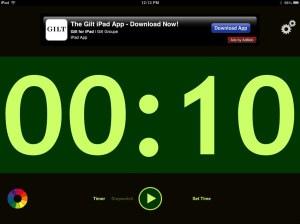
GiantTimer counts up like a stopwatch or down like a timer. It can easily be seen on your iPad screen in large classrooms. It’s gigantic when viewed through a flatscreen or projector.

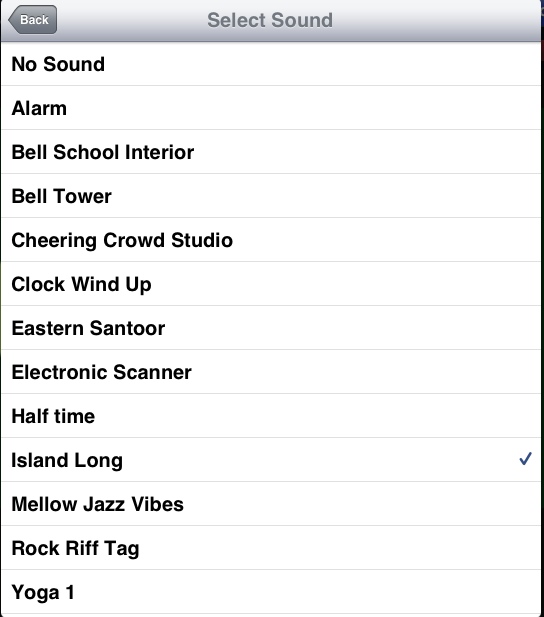
I like the selection of sounds GiantTimer offers when the timer reaches 00.00. Island Long is my favorite tune and I’m including a little snippet of it below.

I found that I had to adjust the sound setting in my iPad Sounds Settings, moving it up a bit before I could hear it. I had it turned down so I would not jump when hearing the alerts that various programs send out.

If you plan to use GiantTimer when proctoring a test, you might want to select “no sound.”

Posted in GiantTimer, iPad Apps | Tagged , | Leave a comment

Using TweetDeck

I’ve been creating Twitter lists this week. I still have people to move about and I can see that this will be an ongoing project as I follow more people, and get to know my present followers better.

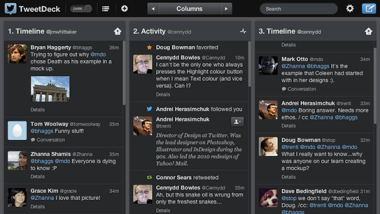
Now that I have some lists, I decided to try out TweetDeck. TweetDeck lets you have several columns open at one time. It looks like a spread sheet. The program automatically opened these three columns, which can be changed, but which make sense to me:

  1. Timeline (These are all the people I follow in one column)
  2. Interactions (These are people who have followed, favorited, or mentioned me)
  3. Messages (These are messages sent to me)

I added additional lists:

  • A list of educators I created earlier this week
  • A search column (for instance I found some interesting tweets when I searched “iPad K12”)
  • A column for a list compiled by someone I follow
  • A column for #edtech

Finally, I added a column for a private list.

I hated TweetDeck at first, but perked up when I discovered I could change the background from black to white. Overall, it’s pretty cool with eight columns across my Mac constantly updating. With all these messages flying in from around the world I feel as though with a bit more practice I could apply during the holiday season as a part-time air traffic controller at O’Hare.

Posted in Lists, TweetDeck, Twitter, Web 2.0 | Tagged , | Leave a comment

Using Twitilist to Organize Your Twitter Lists

No program to download

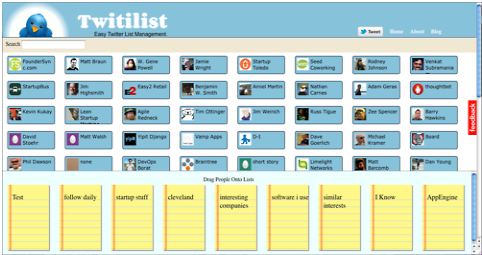
Today I went to Twitilist and signed into my Twitter account so that Twitilist could display the people I follow. This is a great tool. It’s free, did not take long to start listing people, and it’s so easy to use. All the people I followed appeared in the top 2/3rds, more or less, of the screen, and the bottom part of the screen showed the names of my lists.

Drag and Drop

You simply drag a follower into the list you want them to appear in. (Remember to create your lists before opening Twitilist.) You can drag them into more than one list. If someone is already in a list, it grays out as you head towards it, since you can’t add the same person more than once. Here is a screenshot from the Twitilist blog:

I’m not completely organized yet. I need to change the names, once again, of some of the lists. I found I did not have many people listed in the curriculum lists. Twitilist shows only the name, and not the bio, so I could not always remember if an educator went into, let’s say, the English list or the Social Studies list. Educators often ask me who they should follow in Twitter and I thought lists titled by subjects might help me answer that question. Now that I have a good start on this project, it should not be hard for me to manage and keep my lists up-to-date, and to put educators under subjects bit by bit.

The main thing is, I have rescued my PLN and I’m on the way back to a more pleasant Twitter experience.

I’d like to say a big thank you to Ben Gdovicak @Gdovicak for making this program which makes it simple and fast to put people into Twitter lists.

Posted in Lists, Twitilist, Twitter, Web 2.0 | Tagged , | Leave a comment

How I Named my Lists in Twitter

List names cannot begin with a numerical character

I had planned to begin each of my lists with a number in Twitter, thinking that they would then be in the order I would like them to appear, with the most used being at the top as number 1. I soon discovered that numbers are not allowed in list names.

Your list will not be alphabetized

So I decided to start with A and work through the alphabet so they would appear in alphabetical order in Twitter, with A being my most often used list, but the list does not appear in alphabetical order.

Twitter only allows 20 lists per user account. I should be able to find the list I need quickly enough even though I already have almost 20, and even though Twitter does not alphabetize them.

I started removing the A, B, C, etc. in front of each of my lists, but decided to put the letter C in front of each of the curriculum categories I set up. Like this:

  • C Arts
  • C AV
  • C English

That should help a bit.

I had hoped to start populating the lists today, and in fact did manage to add a few people. Hopefully, I will make more progress on my list project tomorrow.

Thanks for reading!

Posted in Lists, Twitter, Web 2.0 | Tagged | Leave a comment

Lists in Twitter

I decided last week that I need to start filtering people into Twitter lists. I follow around 700 people and I have a lot of noise coming through instead of what I want to read at any given moment.

There are some people I enjoy following that are not related to K12 education. They write  interesting tweets. I would prefer to read those at my leisure. During the week I like to stay focused on education, and the people who follow me expect that I will be tweeting something to do with the K12 field, quite often in regards to the use of technology in K12 or higher education. It’s hard to stay up-to-date, and lots of great information is missed, because of the background chatter flowing past.

Yesterday I started adding people to lists within Twitter. This was tedious. I advise all people new to Twitter to start making lists right away. When you are only following twenty people you might not grasp the importance of starting immediately, but it will make your life easier as the number of people you follow grows to such an extent that you no longer recognize who all the tweets are coming from and wonder where the people in your PLN have disappeared to.

Tomorrow I plan to continue putting people in their place. 🙂 That is, putting people in categories. Since people can be in more than one list, I can add someone to both an “education” list and an “iPad” list if they tweet mostly about iPads. Or someone who teaches Science might be on a “Science” list and on the “Education” list. I haven’t firmed all this up yet, but I can visualize many possibilities.

I’ll let you know how it goes.

Posted in Lists, Twitter | Tagged | Leave a comment

Adding Profile Header Picture to Twitter

Not long ago Twitter added a new feature. You can now upload a header picture. The photo in your timeline remains the same but the header photo shows at the top of your timeline. Visitors will see it when they click on your profile. Your timeline photo will appear centered on top of the header photo when you are within Twitter. In Tweetbot, your header is across the top and your timeline photo is right below it.

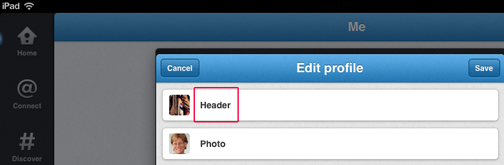
These are the steps I followed to upload the header from within the Twitter program on my iPad. The steps are similar but a bit different if you are at your desktop. Just remember to look for the header photo upload choice in your profile area. The photos below also reflect the steps I used.

  1. Open Twitter App on iPad and click on Me in left hand column
  2. Click on the Tool Icon
  3. Choose Edit Profile

4. Choose Header
5. Browse on your computer and upload the photo you want to use.

Below is one of my header choices. It’s a photo of some pink flowers I already had in my photos. Notice that my timeline photo appears on top of the header along with my profile text.

When you choose a photo from your photo-roll it probably won’t be the exact dimensions you need, but there is a cropping tool that you can use to indicate what part of the photo should be included. That’s all you need to do!

I went a step further. After I uploaded my picture I took a screenshot of the photo and put it into PhotoShop. I copied and pasted the strawberries that you see above on this page and placed them on a higher layer in the screenshot photo. I blurred the flowered screenshot of the flowers, and put a shadow on the strawberries and flattened the image, and then uploaded it as my Header knowing that the dimensions would work. I’ll probably change this soon, as I’m not really satisfied yet, so have a look soon!

Posted in Web 2.0 | Tagged , | Leave a comment

NaBloPoMo Time

National Blog Posting Month
is here and I’m going to attempt to post something each day during the month of November.

I’d never heard of NaBloPoMo until this week, but it seems a worthy pursuit. All the same, writing a blog entry seems a challenge since new topics must be thought of, and words written, every day. The good news is, the only requirement is to post every day, if only a sentence or two, if only a photograph, and well, you get the idea.

I was successful during the 2007 National Novel Writing Month (NaNoWriMo) writing more than the 50,000 required words. Instead of writing a novel I wrote about the time I spent overseas as an expatriate. I can still remember how thrilled I felt when I saw the word count reach the 50,000 mark. If I manage to stay on task this month, and do a post each day in November, I’m sure that I’ll be ecstatic all through the month of December. I’ve heard that it takes 30 days to create a new habit. Time will tell.

Wish me luck, and I hope you check back each day to see if I manage to complete the challenge.

Posted in NaBloPoMo | Leave a comment

IOS 6 for iPAD Offers French, German and Spanish Dictionaries for Free

Good news for K12 language learners and teachers!
If you have not upgraded your iPad to IOS 6 yet, there is a good reason to do so. The following three dictionaries have been included with the operating system:

  • French
  • German
  • Spanish

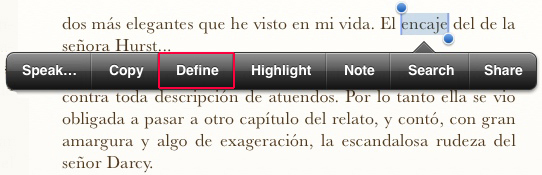
It’s applicable across apps. Highlight the word you want a definition for and a dialog box will pop up asking if you want to download the dictionary (it does not specify what language). Say yes, and the appropriate dictionary downloads.

After the download, highlight the word again and choose “Define” from the menu that pops up.

The definition will appear and you may need to scroll in order to see all the provided information.

My only problem was that I selected several words (maybe 5 words) within different books in my iBook library before I received the dialog box asking if I wanted to download the dictionary. But now that it is downloaded, it seems to be working well.

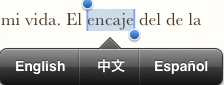
Take note that there is some other cool stuff in the menu, such as Speak. You can hear the word spoken by choosing “Speak” and then choosing Español (or French or German).

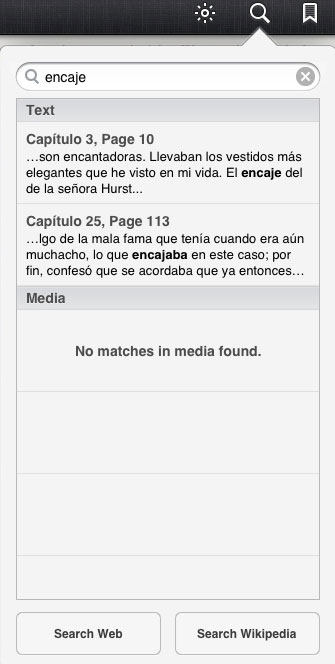
You might also like to do a Search to see where else in the book you are reading the word or form of the word appears.

I’m very excited to have this new feature on my iPad and I’m sure I’m going to get a lot of use out of it. I hope you enjoy it too.

Posted in iPad Apps, Web 2.0 | Tagged , , | Leave a comment

Screencast-o-Matic – Free and No Learning Curve!

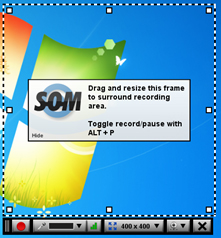
Screencast-o-Matic is a free screen casting program. It’s super simple to use. It’s supposed to work directly from their web site, if your java is up-to-date, however, you also have the choice to download it. I had a bit of trouble using their online version, but found the download version really quick and simple. The program has worked flawlessly.

After opening the program from your Start Menu, click the red button to start recording and a Done button will appear to the right while the red button changes to blue. Click the blue button to pause and click the Done button when you are finished.  Your movie can be up to 15 minutes long.

You can upload to:

  • Screencast-o-matic
  • YouTube
  • Publish to Video File (download to your computer)

The file type choices are:

  • MP4
  • FLV
  • AVI

The Recording Area

The recording area is indicated by a rectangle which you can size by choosing a predetermined size or you can drag from the corners to get the exact size you want. While you are recording you can move the recording screen about, so instead of moving a window into your recording area, you can move the recording area over to the window that opened up outside your view. I prefer to open my files and size them in advance so I know they will open to the size I want in the place I want, but still, at times, something unexpected happens and it could be useful to move the recording area to another part of the monitor.

Webcams or external cameras

If you attach a camera to your computer or have a built in webcam you can have that record at the same time. During the recording the webcam movie is outside the rectangle area of your screencast. However, when you preview the film you see the webcam within the rectangle and can resize and position it for the best effect for your finished movie.

The Pro Version for $15

There are some extra features if you want to upgrade to the $15 a year Pro version, including removing the Screencast-o-Matic watermark on the finished video, uploading to Google Drive and Vimeo, and some editing and scripting features. That’s pretty reasonable for all that is offered.

I have used the free version without the extras and find it delightfully easy without a learning curve of any sort.

Posted in Screencast, Screencast-o-Matic | Tagged , , | Leave a comment

xQuake App for the iPad

It was in Papua New Guinea that I experienced my first earthquake. I awoke in the middle of the night because the bed was shaking.  I heard a vase of flowers as they toppled over. My first thought was that someone was breaking into the house from underneath the floorboards.

When I read a tweet this weekend from
Chris Smith @shamblesguru,
I followed his lead and went straight over to iTunes to download xQuake. It’s usally $2.99 but it’s free today, October 15.

Chris has also uploaded a movie on Youtube
that shows you the program in more detail.

Earthquakes are fascinating and this app is engrossing.

You can view a list by

  • date
  • magnitude
  • name

Below is a screenshot showing my favorite settings:

Here is a 3D – Satellite screenshot using the settings shown immediately above.

This app is a lot of fun. Try it out today while it is free!

Posted in iPad Apps | Tagged , | Leave a comment